
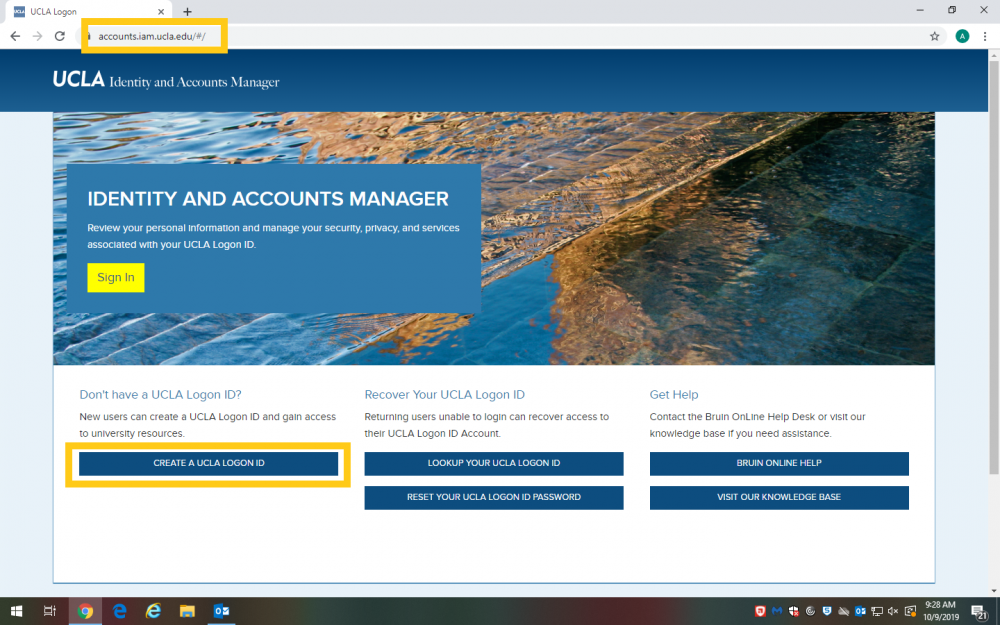
1. Go to https://accounts.iam.ucla.edu and select “Create a UCLA Logon”
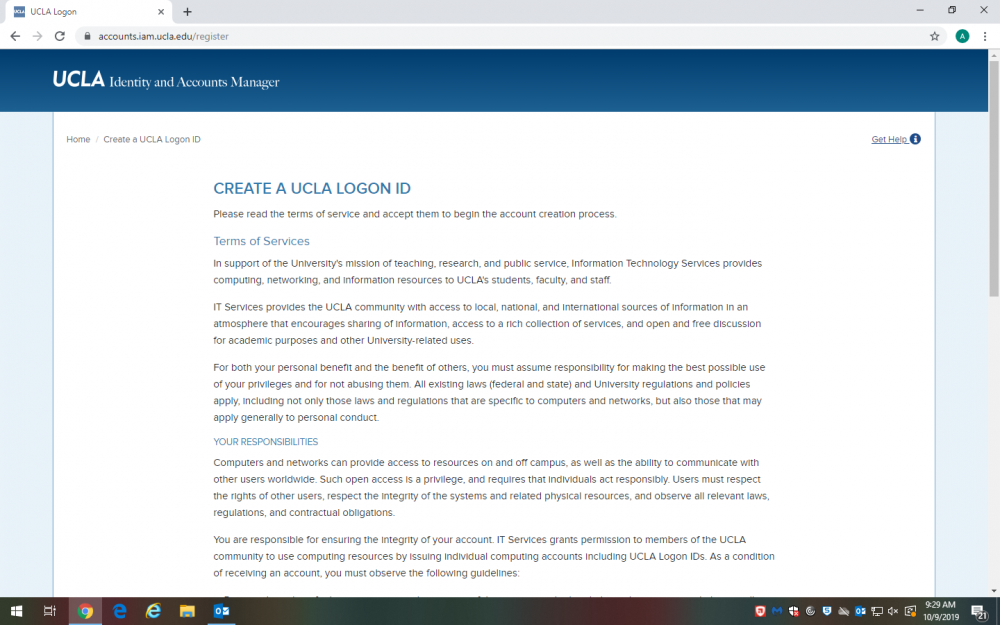
2. Read and agree to the Acceptable Use Policy; then click the Next button.
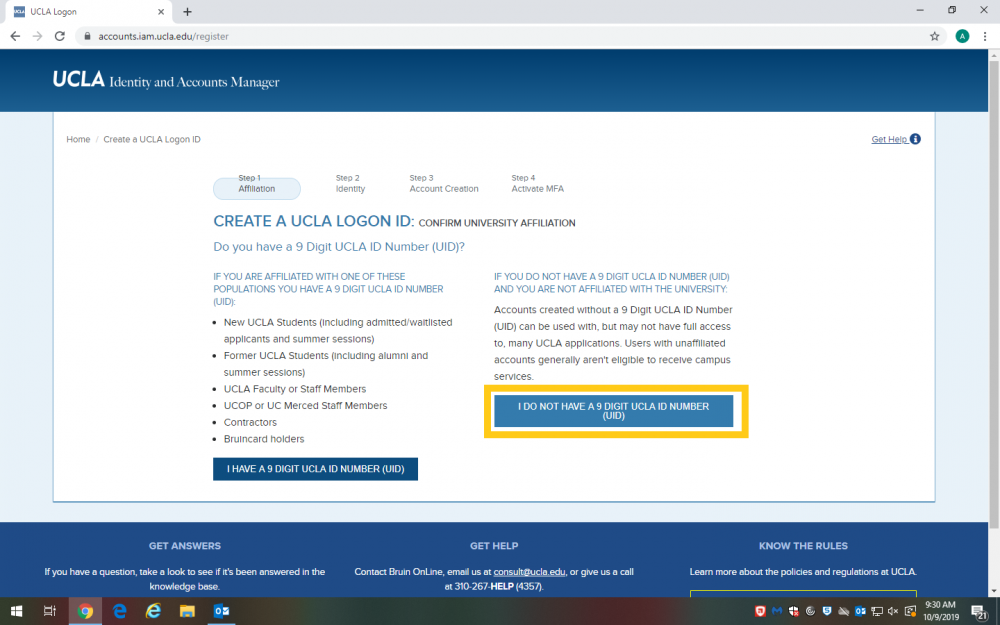
3. Select I do not have a UCLA Identification Number.
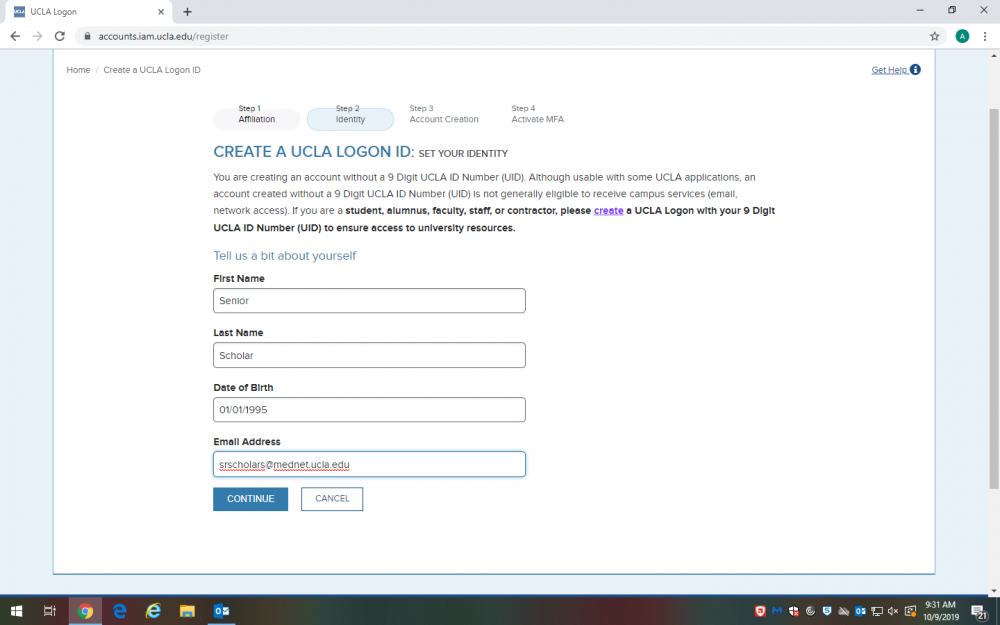
4. Input your name, date or birth and email address.
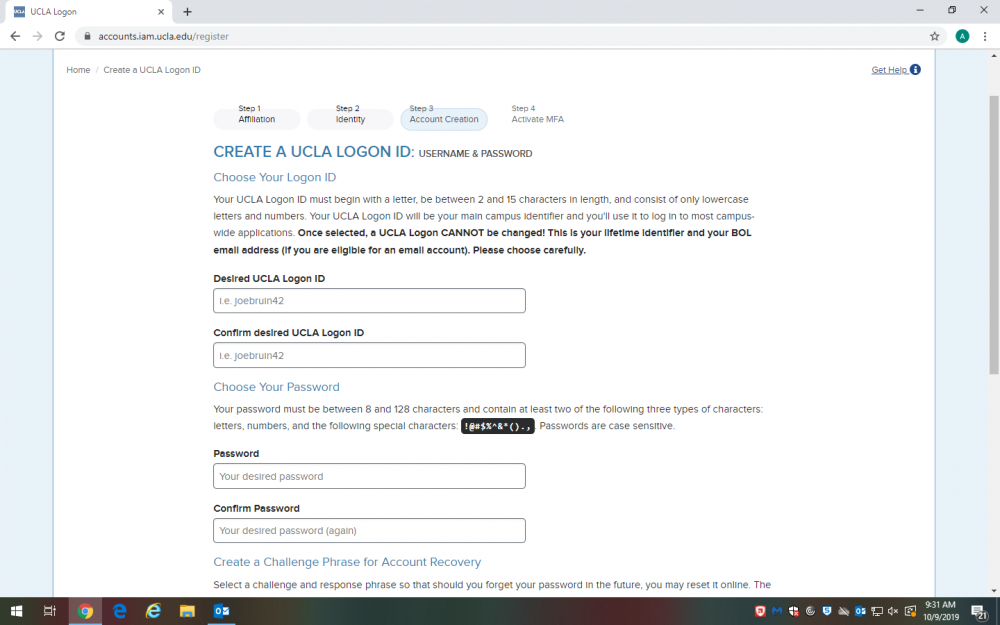
5. Create a username (Logon ID), password, and security question following the onscreen instructions.
6. You have the option to add multi-factor authentication to your account – this is recommended for full time students and faculty who have personal information of value stored on their account, but is not necessary for Senior Scholars.
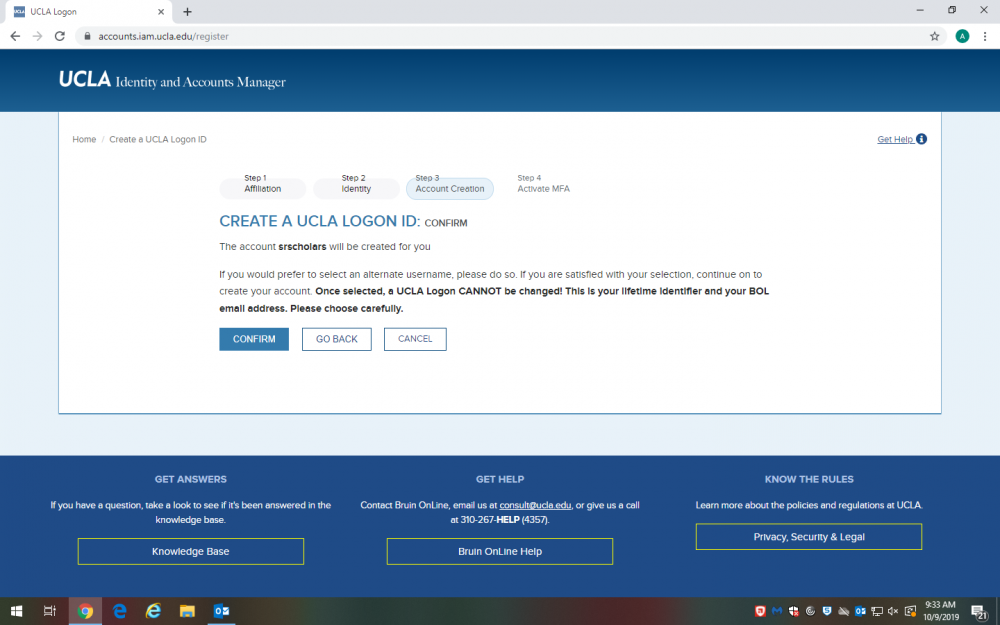
7. To activate your Bruin Learn account, you will need to log into the Bruin Learn website: https://bruinlearn.ucla.edu
8. Safely store your Logon ID, password and security question answers; your Logon ID will remain the same throughout your time as a Scholar.
For Summer Session 2026, Senior Scholars are eligible for online and in-person courses. A condensed list of courses is provided in the Senior Scholars catalog; the full list of classes can be found at the Schedule of Classes.
View the full list of in person courses using the Schedule of Classes at: https://sa.ucla.edu/ro/public/soc
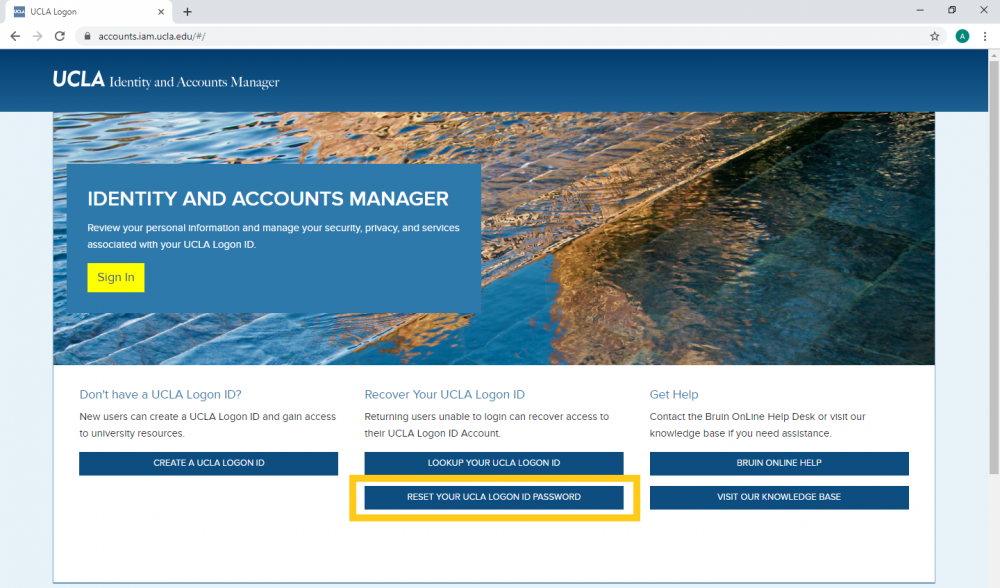
1. Go to https://accounts.iam.ucla.edu and select “Reset Your UCLA Logon ID Password”
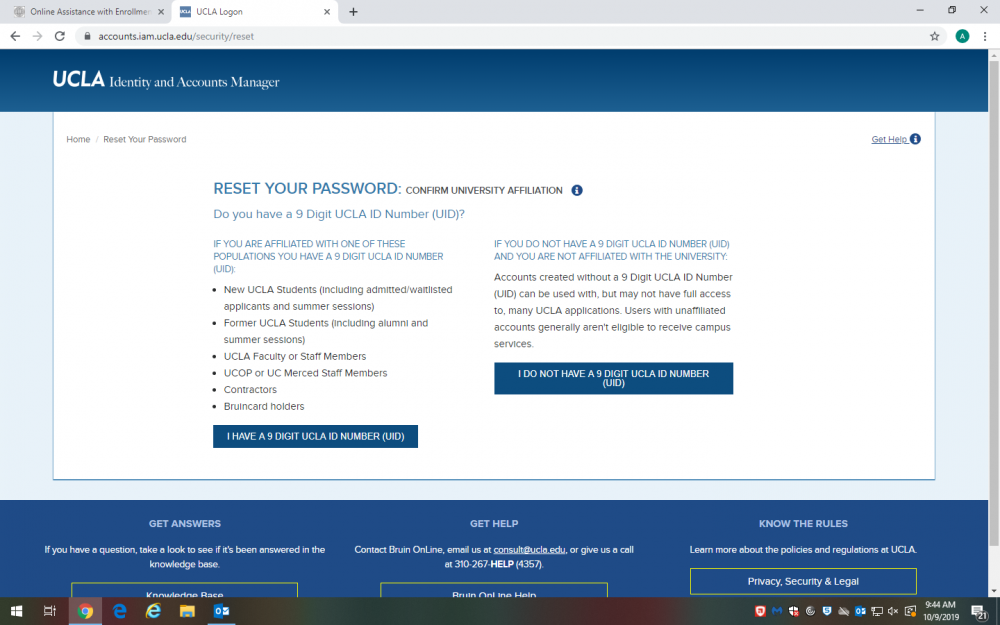
2. Select “I do not have a 9 Digit UCLA ID Number”
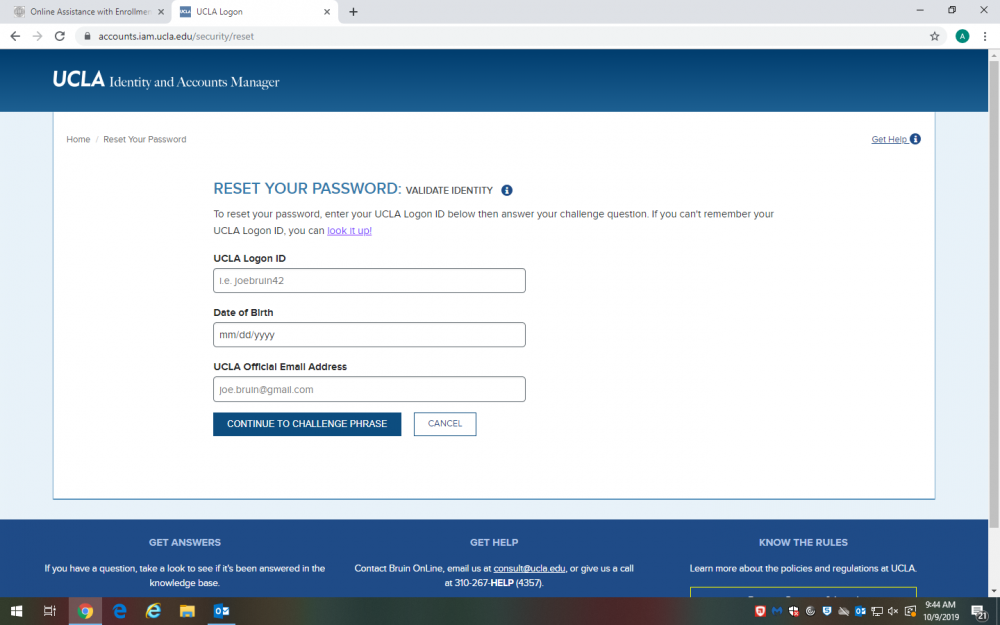
3. Enter your UCLA logon username, date of birth and email address associated with your UCLA logon account.
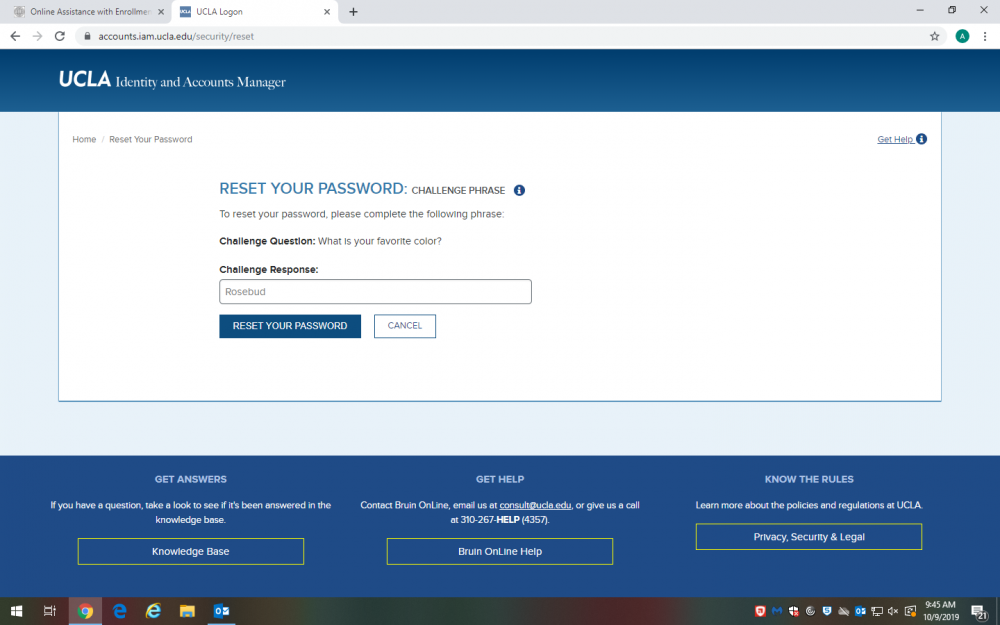
4. Enter your response to your challenge question.
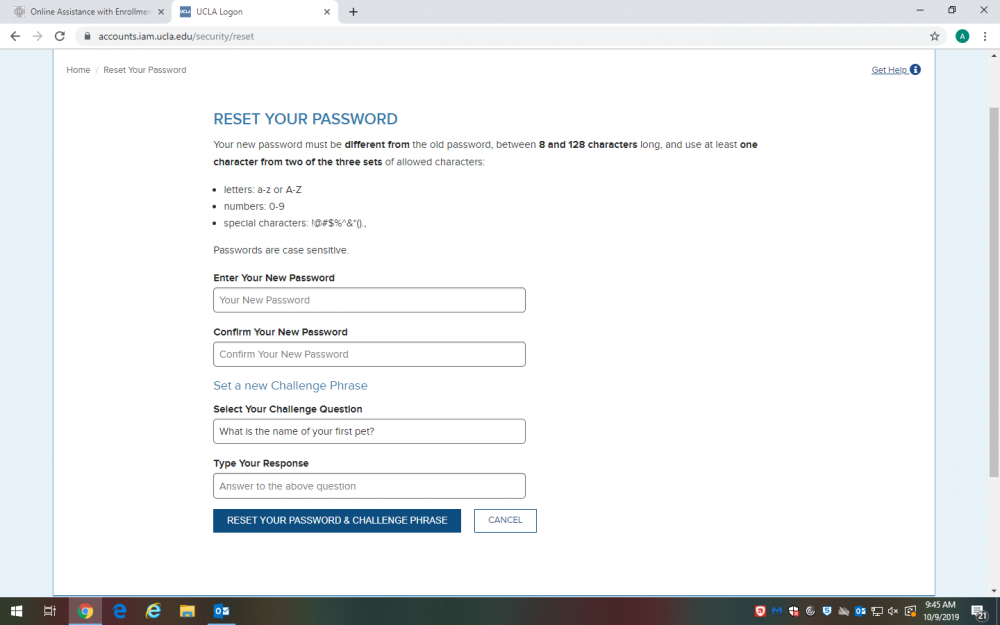
5. Enter in your new password and select a new challenge question and answer.
6. Save your new password in a secure place with your UCLA logon username.
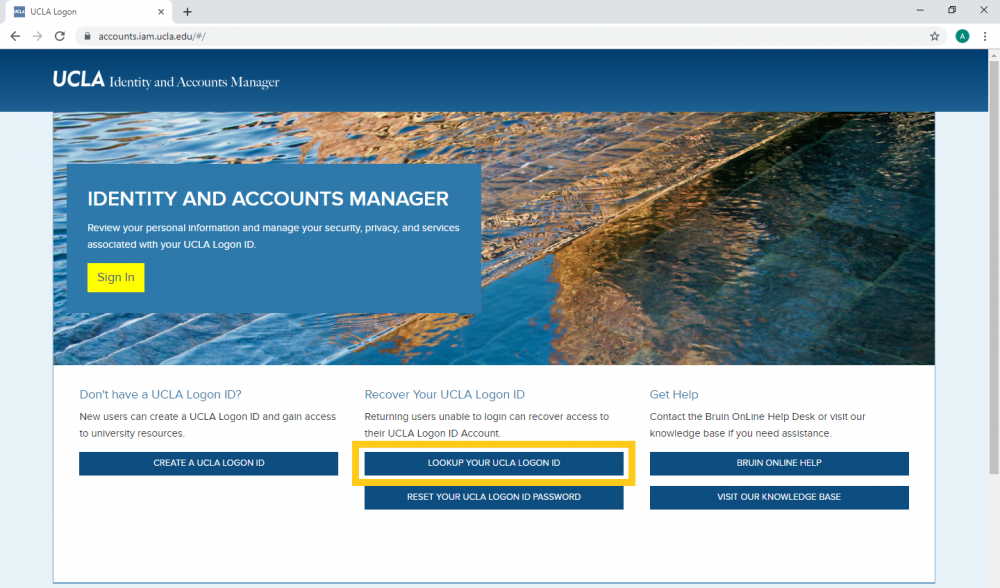
1. Go to https://accounts.iam.ucla.edu and select “Lookup Your UCLA Logon”
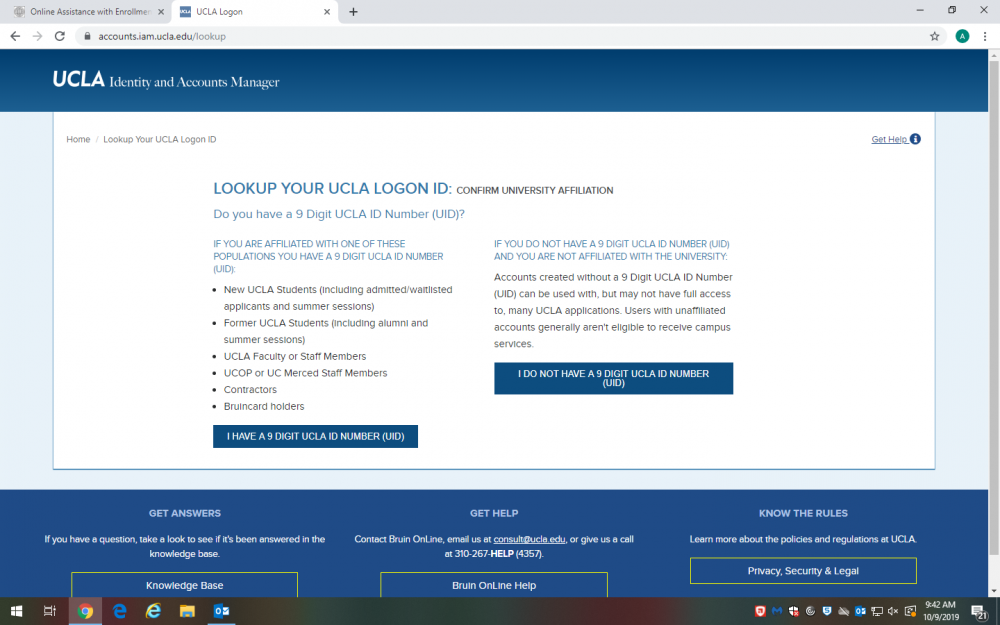
2. Select “I do not have a 9 digit UCLA ID number”
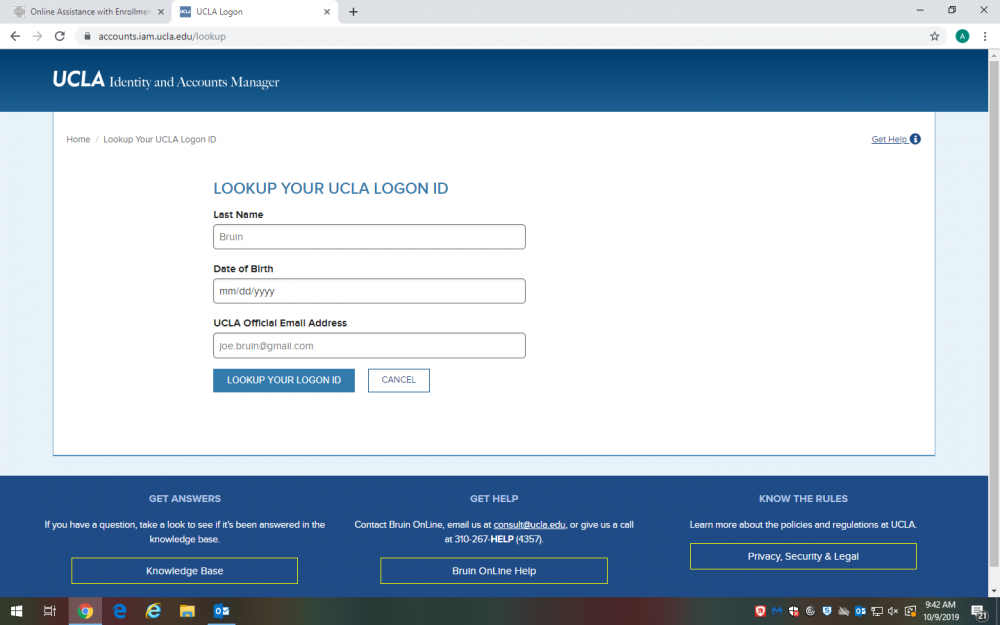
3. Enter your last name, date of birth and email address affiliated with your UCLA logon account.
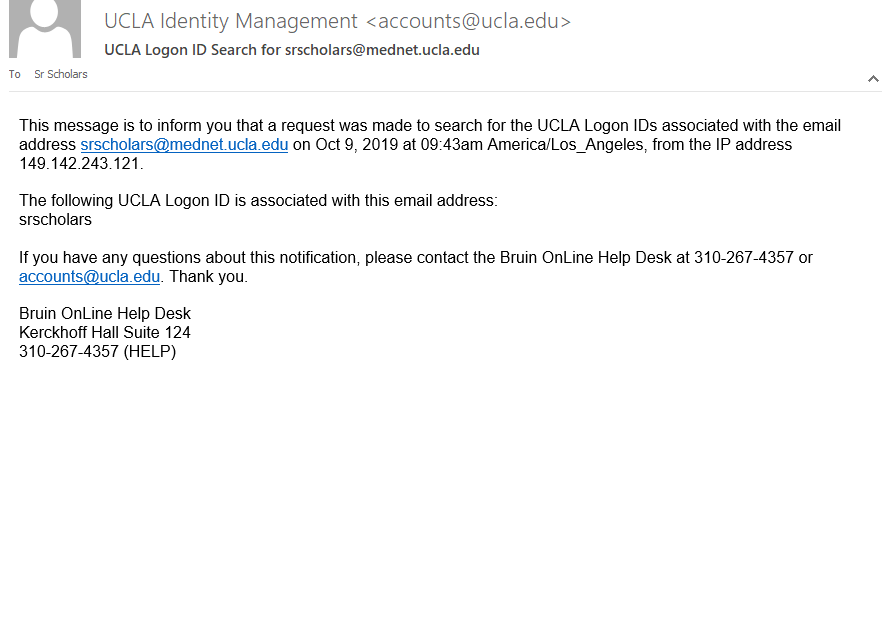
4. An inquiry will be opened and information will be sent to your email address.
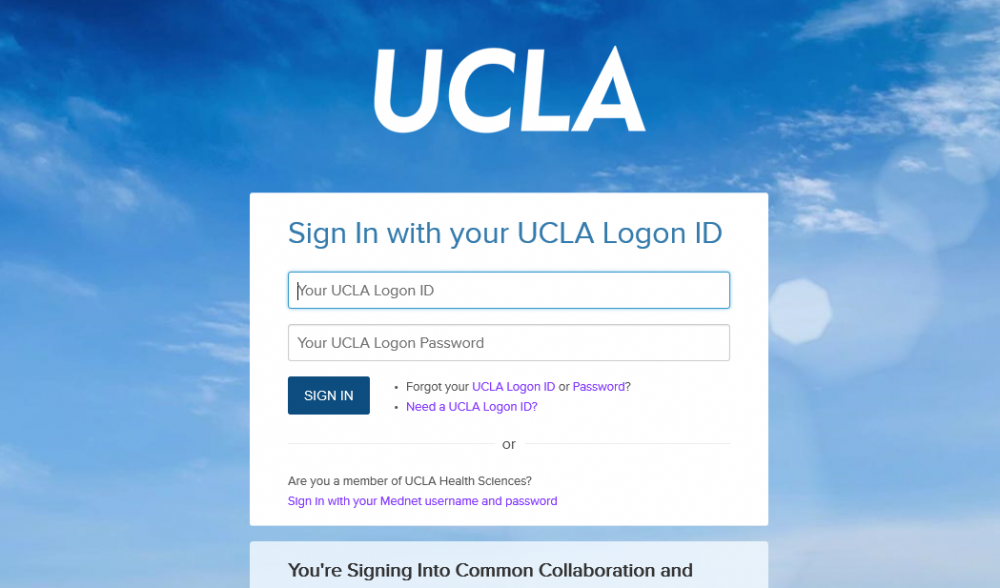
1. Click https://bruinlearn.ucla.edu and enter your UCLA logon informationYour course “dashboard” should automatically show up after you log in, but if you do not see it, look at the menu on the lefthand corner of your screen and click “Dashboard.”

2. Your course “dashboard” should automatically show up after you log in, but if you do not see it, look at the menu on the lefthand corner of your screen and click “Dashboard.”

3. On your dashboard, you will see icons with the course name(s). Click the course you want to access.

4. Every course website will look a bit different. However, all should have “Modules” and “Zoom” listed on the menu on the lefthand side. If your class is asynchronous or recorded, you can find recorded lectures under “Modules.” If your class is live, you can find the Zoom link under “Zoom.” You can also check to see if the course has listed the syllabus to find any reading requirements/course schedule.